


Azure AD
Azure Active Directory (Azure AD) is Microsoft's cloud-based identity and access management solution that empowers organizations to manage and secure user identities and resources across various cloud services and applications.
Seamlessly integrated with Microsoft's cloud ecosystem, Azure AD offers a unified platform for authentication, enabling users to access their resources from anywhere, on any device, with a single set of credentials.
Embrace the power of Azure AD - where simplicity meets sophistication for the ultimate authentication experience!
Instructions
1. Go to "Enterprise applications" > "All applications" > "New application"
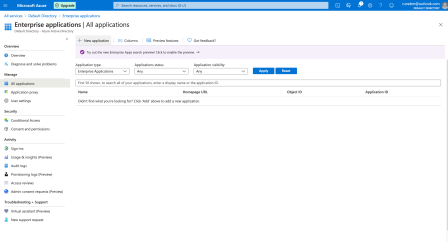
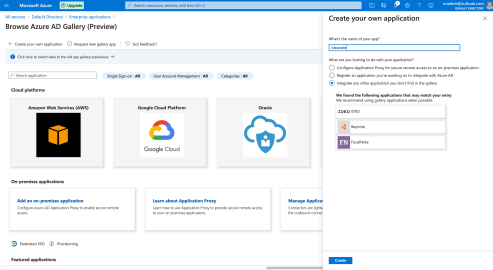
2. Press "Create your own application", name it and create it
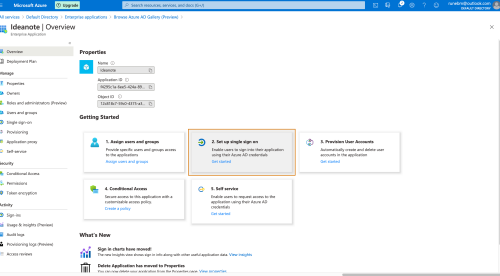
3: Click "Set up single sign on"
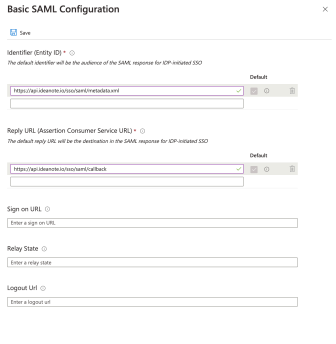
4: Click "Edit" on "Basic SAML Configuration" and enter the following: Identifier: https://api.ideanote.io/sso/saml/metadata.xml
Reply URL: https://api.ideanote.io/sso/saml/callback
5: Download the Federation Metadata XML
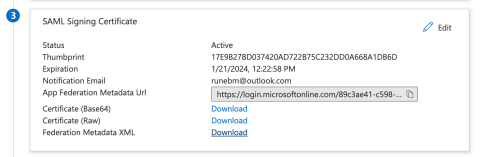
6: Assign users in Azure AD to the new application
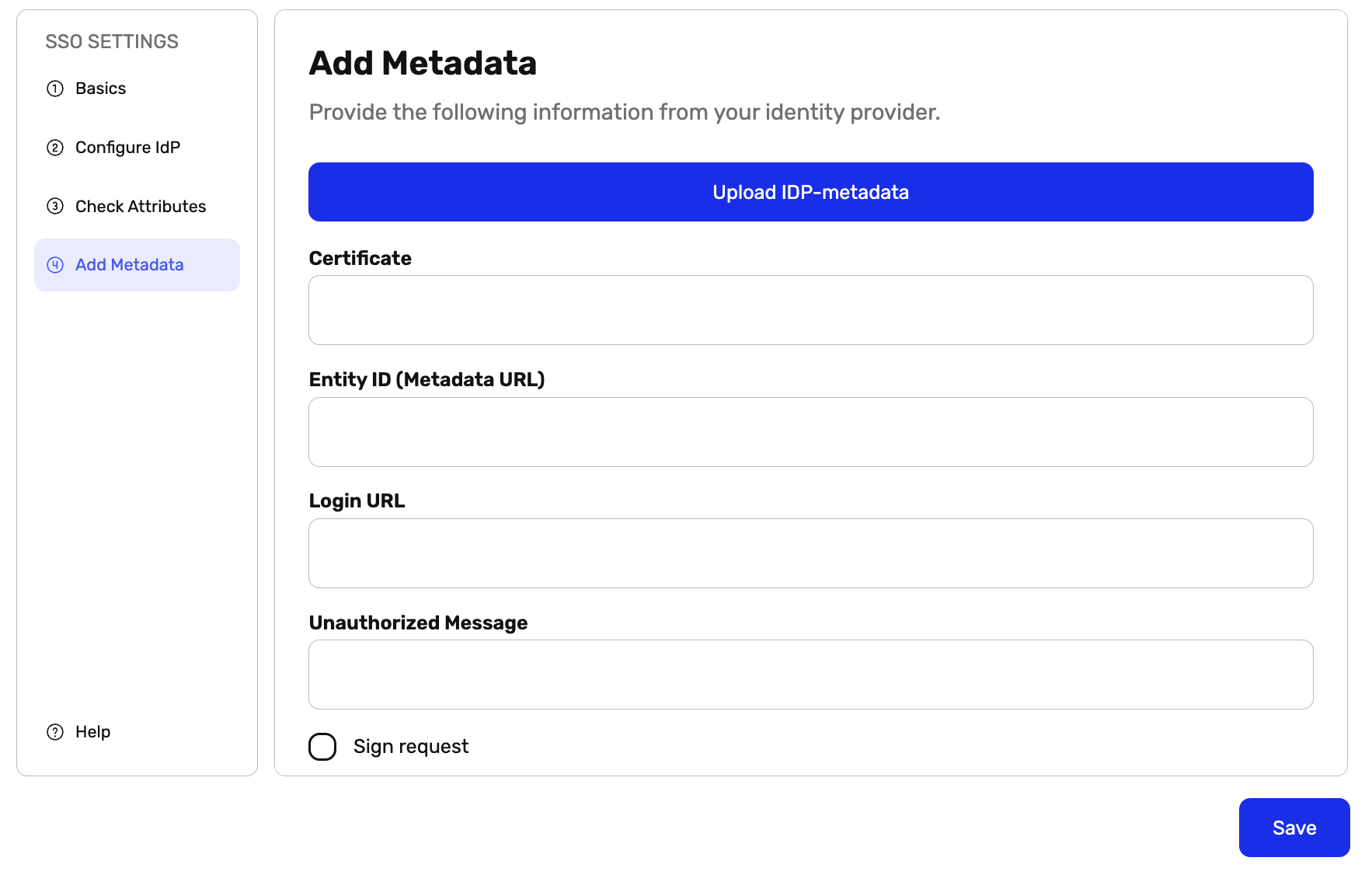
7: Go to your Ideanote workspace settings and click "Authentication" > "SAML" > "Add Metadata" >"Upload IDP-metadata". Upload the Federation Metadata XML and click "Save".
8: Now SAML SSO has been set up successfully and can be tested by logging out of Ideanote. Be aware that IDP-initiated sign-on is not currently supported with Azure AD.