

Where's the idea at?
Set up custom impact tracking to measure your success — so you always know how many ideas are implemented or archived and for what reason.
Does Your Team Ask What Happened to Their Ideas?
When people submit ideas, they want to know what happens next. They ask if their idea moved forward, got implemented, or was archived. Without clear answers, engagement drops.
Custom statuses in Ideanote give you a way to track and communicate exactly where each idea stands. You define the statuses that match your process. When you mark an idea as archived or completed, you add a pre-filled message that explains the decision. Your team sees why an idea was set aside or how it reached completion.
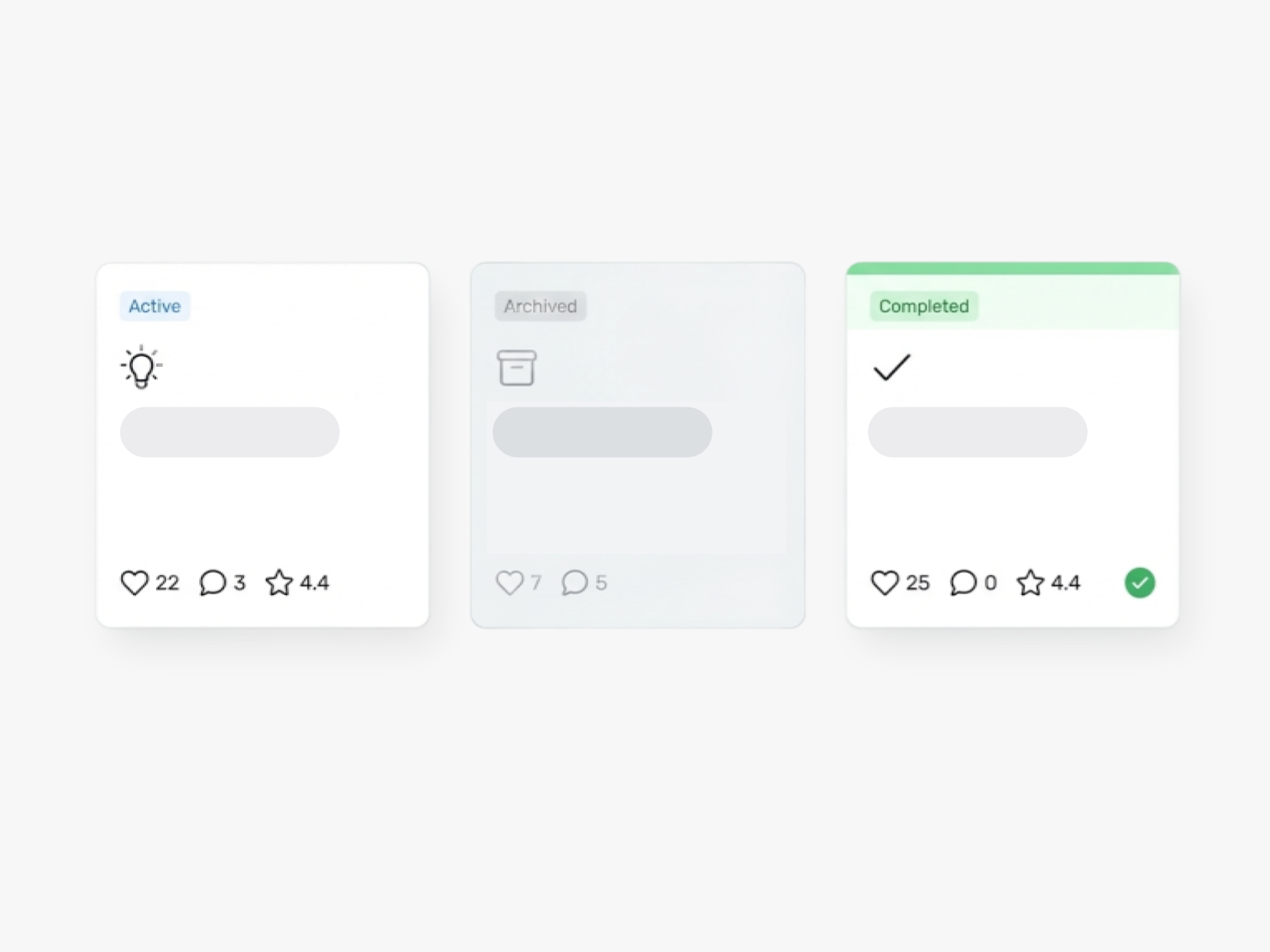
Set up statuses like "Implemented," "Moved to project management," or "Archived - outside scope." Each status includes your explanation. Ideas marked completed show with a green tint. Archived ideas appear gray. Your team knows the outcome at a glance.
You configure statuses once in your workspace settings. They become available across all your idea collections. Use them in charts to report on implementation rates or archive reasons. Connect them to automations to notify contributors when status changes occur.
Custom statuses create a shared view of your innovation work. Your reports show accurate completion types. Your team stays informed. Your process stays consistent across departments.
How Do I Set up Custom Statuses in Ideanote?
Navigate to Settings, then Statuses. From there, you define your custom statuses at the workspace level. Once you create them, they become available across your entire platform.
Your statuses apply to all idea collections in the workspace. This ensures data consistency and makes analysis easier over time.
What Types of Custom Statuses Should I Create?
Think about how ideas move through your organization. Common examples include "Selected for Implementation," "Moved to Project Management," "Duplicate," "Out of Scope," or "On Hold."
For archived ideas, create statuses that explain why the idea was archived. For completed ideas, create statuses that specify what type of completion occurred. This clarity helps with reporting and keeps submitters informed.
Do I Have to Use Phases to Set a Status on an Idea?
No. You apply statuses directly to ideas without requiring a phase-based workflow. This gives you a lightweight way to label and track ideas.
How Do Custom Statuses Help Me Close the Feedback Loop?
When you change an idea's status, you send a pre-filled message that explains the decision. For example, when you archive an idea as "Out of Scope," the submitter receives a message explaining why.
This transparency keeps contributors engaged. They see what happened to their idea and understand the reasoning behind each decision.
How Do Statuses Appear Visually in the Platform?
Completed ideas display with a slight green tint. Archived ideas appear with a slight gray tint. This visual distinction helps you quickly scan and identify where each idea stands.
Will I Be Able to Edit a Completed Idea Later?
Yes. Marking an idea as completed does not lock it. You reopen or edit completed ideas if circumstances change or if you need to update information.
How Do I View All Completed Ideas for a Specific Team or Business Unit?
Filter your idea collections by status and by team or business unit. This gives you a view of all completed ideas within that group.
You also use these filters in charts and reports to showcase which ideas were implemented. This serves as a visible record of your innovation outcomes.
How Do Custom Statuses Work With Reporting and Automations?
Your custom statuses feed directly into charts and automations. This means you track metrics like how many ideas were implemented, archived, or moved to another stage.
Because your statuses reflect your actual workflow, your data stays accurate. You get a single source of truth for measuring innovation impact across your organization.


Smart and Easy Idea Management
Talk to our Experts or try Ideanote for free. No credit card required.

