
Introducing Automations 2.0
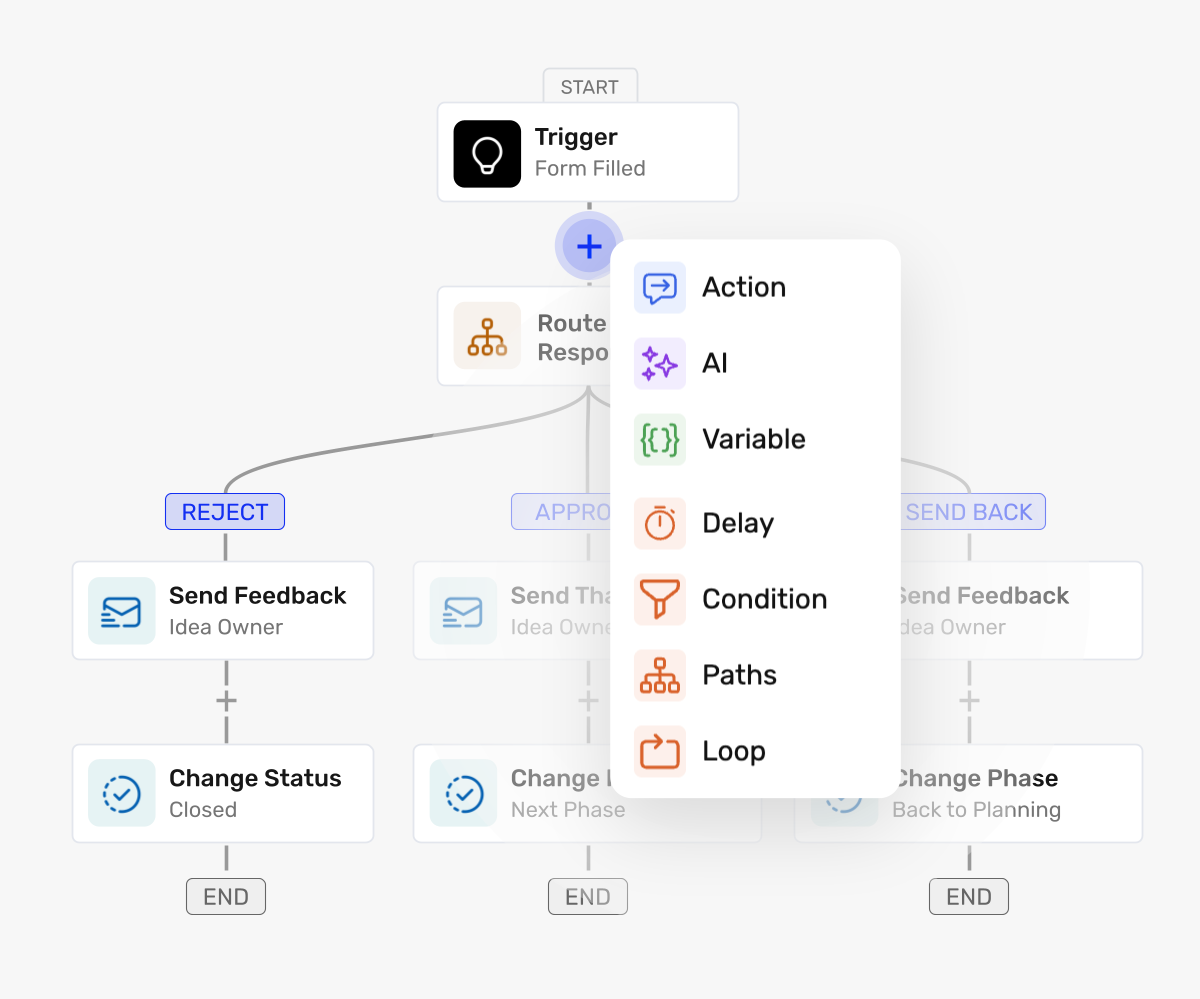
Until now, every Ideanote automation followed the same five steps: trigger, delay, condition, AI, action. You could add more actions at the end, and that was it. Good enough for "when an idea comes in, move it to review." Not enough for building your full automation machine.
Automations 2.0 changes that. It replaces that fixed order with a visual workflow builder. Add only the steps you need, in the order you need them, and branch, loop, schedule, and inspect every run. Route ideas across all your phases in one visual automation, do multi-step research for promising ideas or send out summarized updates on your idea collection on a scheduled trigger. Now you can fully automate your innovation machine.
Your existing automations have already been migrated. Open any of them and you'll see the new builder; click expand to work in fullscreen mode. We will update the help docs in the coming days.
Workflow builder feature highlights:
- Full-page builder. Start in the inline view, click Expand for the large canvas.
- Expression picker. Click your way to any field or value instead of typing {{idea.field.xxx.value}}. Search across everything the flow knows about.
- Build with AI. Describe the process and Ideanote drafts the flow.
- Smart descriptions. Each automation gets a plain-language summary of what it does.
- On Demand trigger. Run any automation with a button.
- Schedule trigger. Run once, hourly, daily, monthly, quarterly, or on a cron expression.
- Paths and filters. Split a flow into sequential, parallel, or if-else branches and gate paths on conditions.
- Loops. Repeat steps for every item in a list, such as every idea in a collection.
- Chained agentic AI. Add as many AI steps as you need; each one works from the output of the last.
- Variables, locked steps and hiding workflows. Store values for later steps or let users edit single variables for complex automations while hiding the workflow builder itself.
- Runs inspector. See every execution, which steps passed or failed, and each step's input and output.
- Versions history. Ideanote saves versions as you edit. Restore any of them in one click.
- Retry and continue on failure. Each step has the option to enable automatic retry, or mark a step as optional so the flow keeps going if it fails.