

Save hours managing ideas.
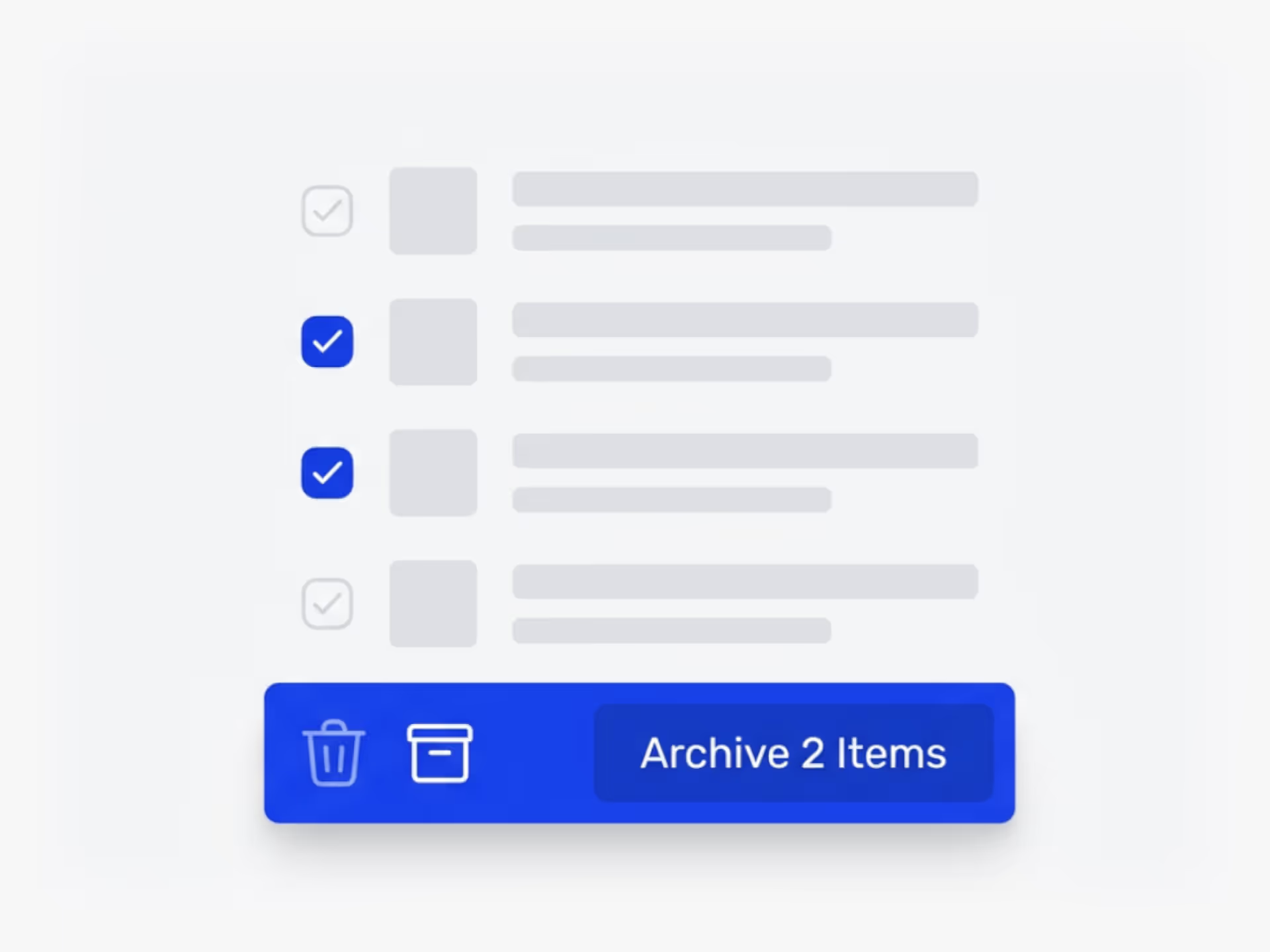
Ideanote comes with powerful bulk actions. No need to do it one at a time — select many at once and move, delete or update many at once.
Why Manage Ideas One by One When You're Dealing With Hundreds?
When your innovation program grows, manual updates become a bottleneck. Exporting ideas individually, moving submissions through phases one at a time, or updating user permissions across your organization drains hours from your week.
Ideanote's bulk actions let you select multiple ideas or users at once and apply changes across all of them in seconds. Select dozens of ideas from a filtered list and move them all to a new phase. Update the status of an entire category. Relocate miscategorized submissions to the right collection. Merge duplicate entries to keep your workspace clean.
The same applies to user management. Filter your user list to find inactive accounts from the past year, select them all, and suspend or archive them with one action. Change notification settings for entire departments at once. Import new users through a spreadsheet instead of adding them individually.
Your innovation program runs on speed and clarity. Bulk actions remove the administrative friction that slows down decision-making and keeps you focused on evaluating ideas instead of moving them around. Whether you're managing 500 ideas or 5,000 users, Ideanote scales with your needs.
How do I select multiple ideas at once?
Go to any list view in your workspace. You will see a checkbox next to each idea. Click the checkboxes to select the ideas you want to manage together. You then see a bulk action menu appear at the top or bottom of your list.
From there, you choose the action you want to apply to all selected ideas at once.
What bulk actions are available for ideas?
You have several options. You move ideas to a new phase or update their status. You move them to another idea collection. You also merge selected ideas together if you need to consolidate duplicate or overlapping submissions.
These actions save you from opening and editing each idea individually.
How do I move many ideas between collections or categories?
Select the ideas you want to move. Then choose the bulk move action and pick the target collection. The ideas transfer to the new collection in one step.
This helps you reorganize submissions when people post ideas in the wrong place or when you want to group related themes together.
How do I handle duplicate or similar ideas at scale?
Use the bulk select feature to choose the ideas you want to consolidate. Then apply the merge action. This combines the selected ideas into a single entry so you reduce clutter and avoid evaluating the same concept multiple times.
You save time on clean-up and keep your idea pipeline organized as your program grows.
How do I export multiple ideas at once?
Select the ideas you want to export using the checkboxes in list view. Then choose the export action from the bulk menu. All selected ideas export together in a single file.
You do not need to open and export each idea one by one.
Do bulk actions work for managing users too?
Yes. Go to settings and users. You create a filtered list based on criteria like last login date or activity level. Then you select the users you want to manage and apply bulk actions to suspend accounts, archive inactive users, or update notification settings for many people at once.
This helps you maintain your user base and manage annual clean-ups without manual one-by-one edits.
How do I import many users at once?
You upload a spreadsheet with user details. Ideanote processes the file and creates or updates user accounts in bulk. This saves you from adding users one at a time through the interface.
The feature supports high-volume onboarding when you roll out innovation programs across departments or the entire organization.

Gestion d'idées intelligente et facile
Contactez nos Experts ou essayez Ideanote gratuitement. Aucune carte bancaire requise.

