

Custom Notifications For Ideas: Targeted Email And In-App Alerts
Send in-app alerts and styled emails triggered by filters. Personalize messages with links and user or idea fields.
Who Gets Notified When Ideas Move Through Your Workflow?
Most platforms send every update to everyone, or force you to email people manually. Ideanote gives you control over who receives alerts, when they receive them, and what those messages say.
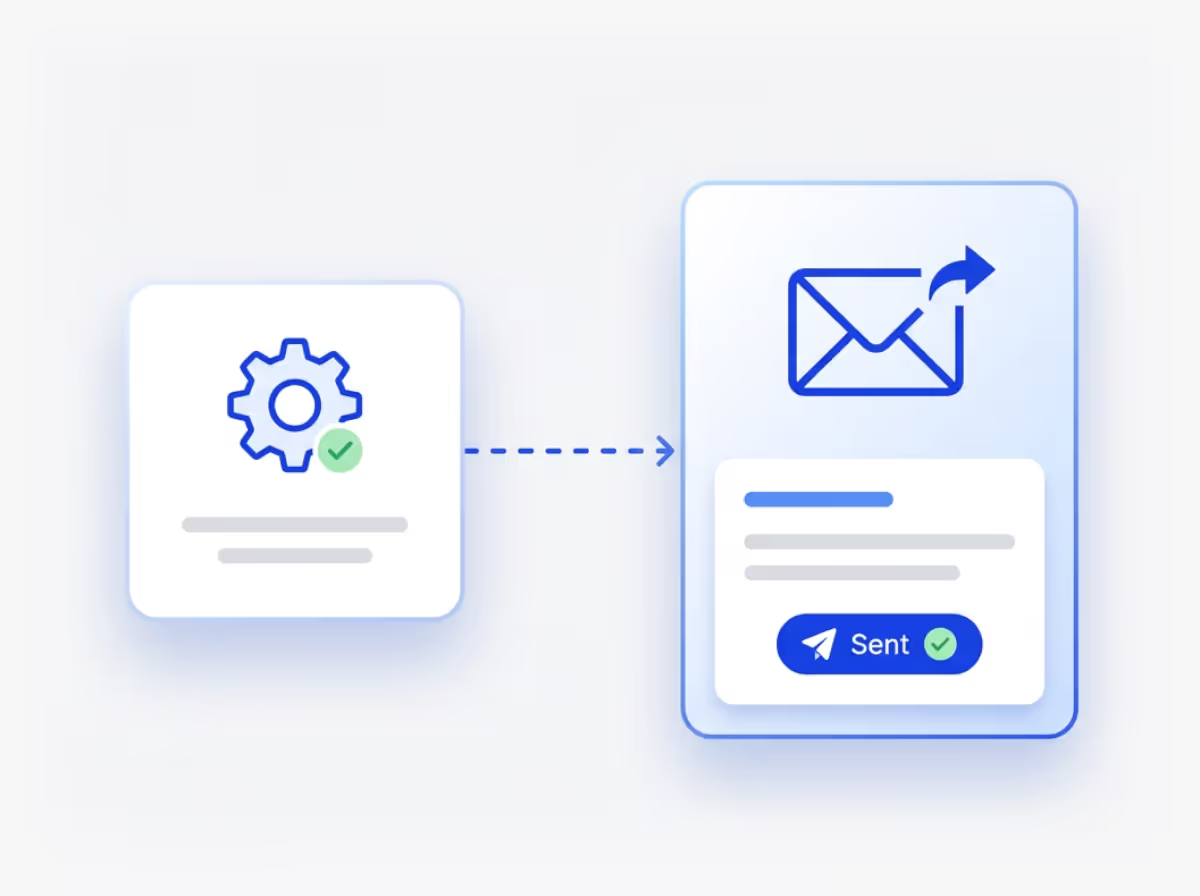
Custom Notifications let you set up automated alerts triggered by the events you choose. When an idea enters the rating phase, notify your review team. When someone assigns an idea to a department, alert the responsible owner. When a submission sits too long without action, send a reminder to follow up.
You decide whether to send an in-app notification or a fully styled email with your logo and colors. Messages include variables like the user's name or idea title, and you write the text yourself. Add links to bring people directly to the idea or phase they need to review.
Common Use Cases
Send a thank-you email to people who submit ideas. Alert specific stakeholders when ideas move from comment to rating. Remind invited users to contribute if they have not yet participated. Notify owners when their idea changes status or gets rejected, with a message explaining next steps.
Standard notifications handle likes and mentions. Custom Notifications handle your process. You stay in control of the when, who, and what, so the right people get the right information at the right time.
Who receives notifications when an idea is submitted or updated?
You choose who receives each notification. By default, Ideanote sends standard notifications to idea owners, commenters, and people who are mentioned. With custom notifications, you define the audience using filters. You select specific users, teams, departments, or roles who need to know when something happens.
For example, when an idea moves to the review phase, you send a notification only to the review committee. When someone submits an idea to a specific mission, you notify only the mission owner. This prevents notification overload and ensures the right people stay informed.
What events trigger custom notifications?
You define the trigger. Common triggers include when an idea is submitted, when an idea moves to a specific phase, when an idea receives a certain status, when someone assigns an idea to a person or team, or when an idea sits in a phase for too long.
You combine triggers with filters to get precise control. For instance, you send a thank you email when someone submits an idea to your employee suggestion mission. Or you notify stakeholders when an idea tagged as high priority moves to the approval phase. You decide what matters and when people need to know.
How do I customize the notification message?
You write the message text yourself and format it to match your brand. For in-app notifications, you compose the message and add a link if needed. For email notifications, you design the full email with text, buttons, images, and colors.
You personalize each message with variables like the recipient's name, the idea title, the idea URL, or the phase name. This makes every notification feel relevant and direct. For example, you write "Hi [User Name], your idea [Idea Title] has been approved and moved to implementation."
Do notifications go out by email or only within the app?
You choose the delivery method for each custom notification. You send notifications as in-app alerts that appear in the Ideanote notification center, or you send them as emails to users' inboxes, or both.
In-app notifications work well for quick updates when people are already active in the platform. Emails reach people outside the platform and work better for important updates or reminders. You decide based on the urgency and audience for each notification.
Do email notifications include our company branding?
Yes. You style email notifications with your logo, colors, fonts, and images. The email builder lets you design the layout and format the message to match your brand guidelines.
This makes notifications feel like they come from your organization, not from a third-party tool. Recipients see your brand identity in every message, which builds trust and reinforces your innovation program's presence.
How do I set up reminders for ideas that sit too long in a phase?
You create a custom notification that triggers when an idea stays in a specific phase for a defined number of days. You set the time threshold and specify who receives the reminder.
For example, you send a reminder to the review team if an idea sits in the review phase for more than seven days. This nudges people to act and keeps ideas moving through your workflow. You prevent bottlenecks and make sure nothing gets forgotten.
What happens when someone submits an idea? Do they get a confirmation?
Ideanote sends a standard confirmation message when someone submits an idea. With custom notifications, you replace or supplement this with your own message.
You write a personalized thank you email that explains what happens next, who reviews the idea, and when they hear back. You add links to resources or FAQs. This sets expectations and shows contributors that you value their input.

Gestion d'idées intelligente et facile
Contactez nos Experts ou essayez Ideanote gratuitement. Aucune carte bancaire requise.

